If your company is registered in DMCC, you can get its statement of account (the Portal Statement) from the DMCC Member Portal yourself. The statement is not generated straight away. You send a report request, wait about 5 minutes, and then download it.
Below are the steps in the order you see them in the portal, from login to download.
Where do you find the statement of account in the DMCC portal?
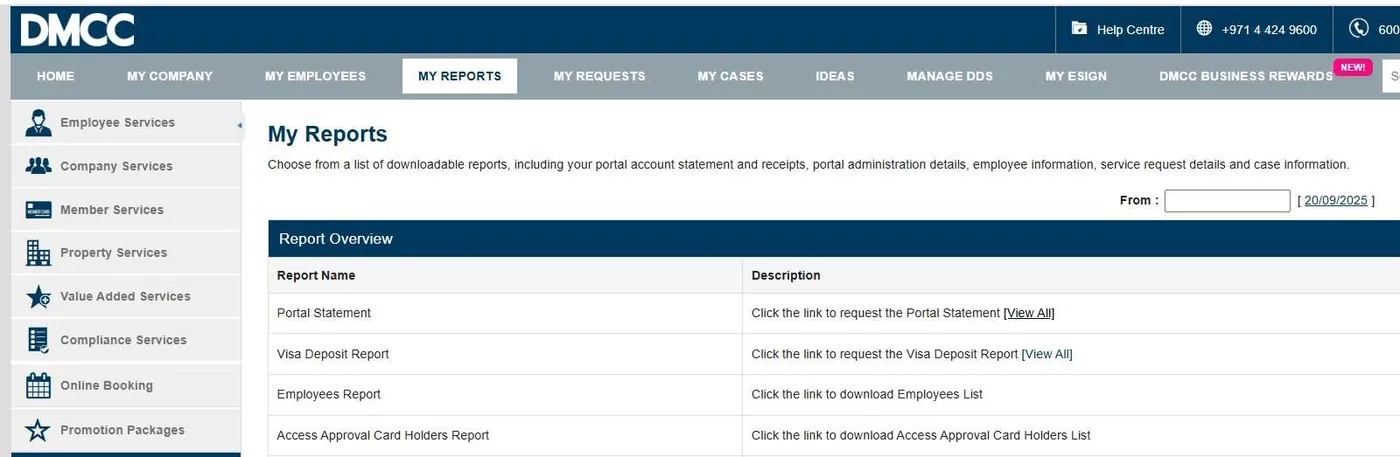
Log in to the DMCC portal at https://portal.dmcc.ae/communitylogin?startURL=%2F. In the top menu, go to My Reports.
In the Report Overview list, find Portal Statement and click View All. The same list also has the Visa Deposit Report, the Employees Report and the Access Approval Card Holders Report.
How do you request a new statement in the DMCC portal?
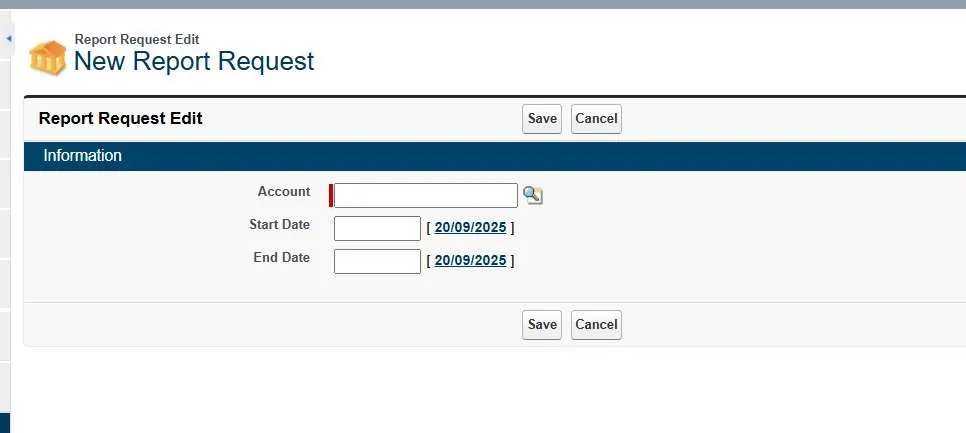
- Click New Report Request.

- In the Account field, click the search sign next to the field and select your company.
- Select the time range with Start Date and End Date, for example 2024.
- Press Save.
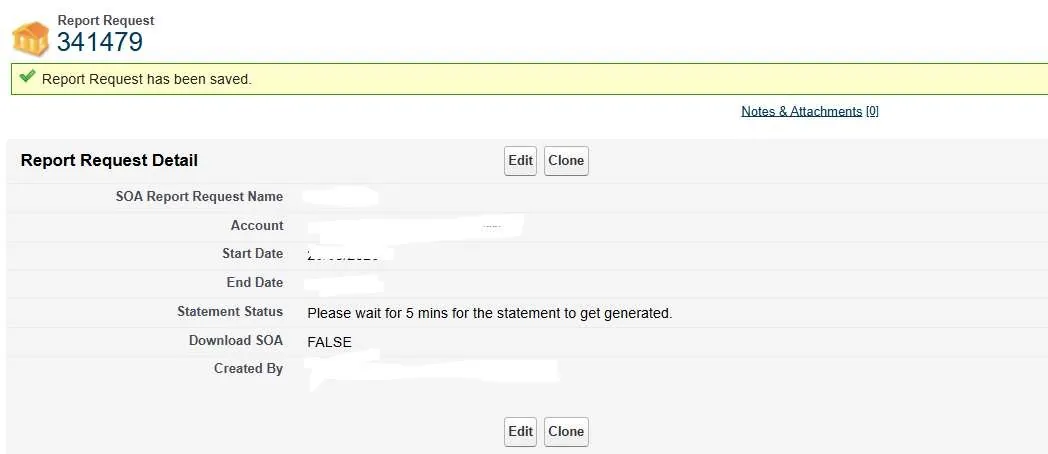
After you press Save, the portal shows the request number and the message "Report Request has been saved".
Why is the DMCC statement not ready straight away?
The report is not generated straight away. Right after you save the request, the Statement Status shows "Please wait for 5 mins for the statement to get generated", and Download SOA shows FALSE.
Wait 5 minutes and go back to My Reports, then Portal Statement, then View All.
How do you know the statement is generated?
In the list of requests, each line shows the Start Date, End Date, Generate Portal Statement and Statement Status. Once the report is generated, Generate Portal Statement shows true and Statement Status shows Generated.

If the line still shows the message asking you to wait 5 minutes, the statement is not ready yet. Check again a little later.
How do you download the statement from the DMCC portal?
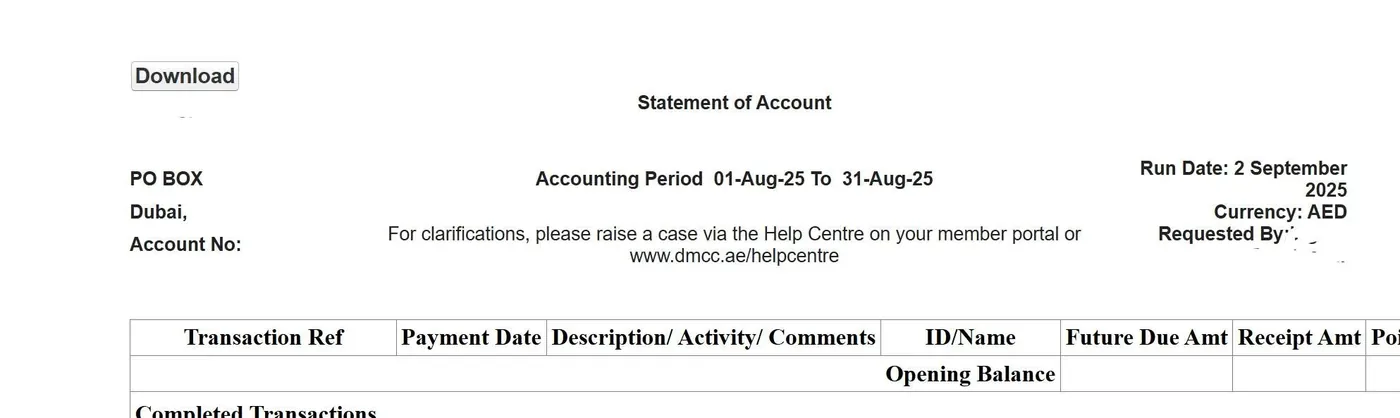
Go to the statement marked Generated and click its request number in the Name column. The Statement of Account opens. Press Download at the top of the page.

What does the DMCC statement of account show?
The top of the statement shows your DMCC account number, the accounting period you selected, the run date, the currency (AED) and who requested it.
Below that is a table with the Transaction Ref, Payment Date, Description, Activity or Comments, ID or Name, Future Due Amount and Receipt Amount, starting with the Opening Balance and followed by the completed transactions.
If something in the statement is unclear, DMCC asks you to raise a case through the Help Centre on your member portal.
Can InBusiness handle DMCC portal requests for your company?
Yes. Many of our DMCC clients are commodity trading, shipping and holding companies, and we already handle their accounting and company admin, including requests in the DMCC portal.
If you would like us to take care of your DMCC portal, book a 30 minute call with our English or Russian speaking team, or send us a message on WhatsApp at +971 50 219 8443.
FAQ
How do I download the statement of account from the DMCC portal?
Log in to the DMCC portal, go to My Reports and click View All next to Portal Statement. Click New Report Request, select your company, choose the Start Date and End Date and press Save. Wait 5 minutes, open the request marked Generated and press Download.
Where is the statement of account in the DMCC portal?
Under My Reports. In the Report Overview list, find Portal Statement and click View All. This page shows your earlier requests and the New Report Request button.
How long does it take to generate a statement in the DMCC portal?
About 5 minutes. Right after you save the request, the Statement Status shows "Please wait for 5 mins for the statement to get generated". After 5 minutes, go back to View All to check.
How do I know my DMCC statement is ready to download?
In the list of requests, the Statement Status shows Generated and Generate Portal Statement shows true. Click the request number in the Name column and press Download.
Can I choose the period for the DMCC statement of account?
Yes. When you create a New Report Request, you select the Start Date and End Date, for example the whole of 2024. The statement then shows the accounting period you selected.
Who do I contact if something in my DMCC statement is unclear?
DMCC asks you to raise a case through the Help Centre on your member portal for any clarifications on the statement.
About InBusiness
InBusiness is a Dubai-based accounting, tax, and corporate services firm, founded in 2021, that acts as the UAE finance and compliance arm for international businesses. The team provides outsourced accounting, tax advisory, company formation, admin services, and immigration across all Free Zones and Mainland. The team speaks English and Russian.